01
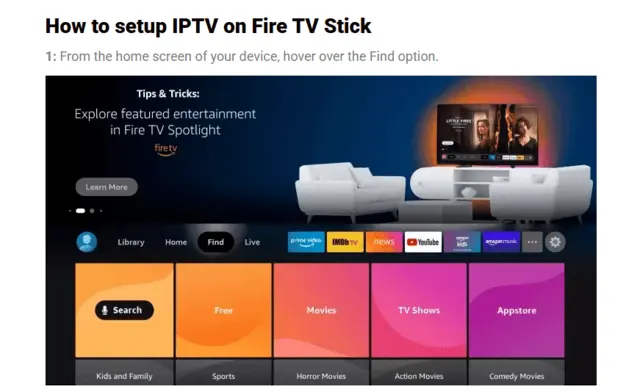
From the Fire TV home screen, highlight Find.
FireMega4K setup signal
Choose the player that fits your device, enter the login details from your activation message, and let your channels, guide, movies, and series load automatically.
Use the server URL, username, and password sent after activation. Keep these details private—do not post them in a review or social-media comment.
Fire Stick / Android guide
Follow the real Fire TV screen captures below. Menu names can look slightly different depending on your Fire OS version.
From the Fire TV home screen, highlight Find.
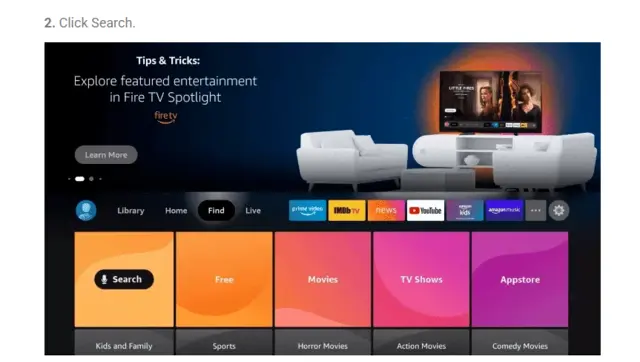
Select Search.
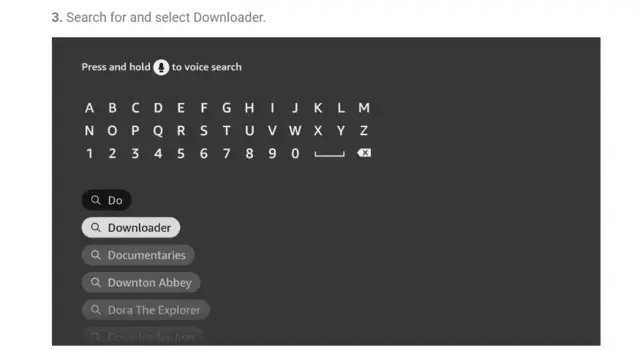
Search for Downloader.
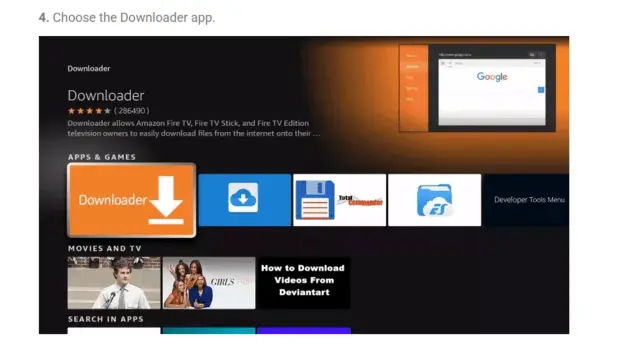
Select the Downloader app by AFTVnews.
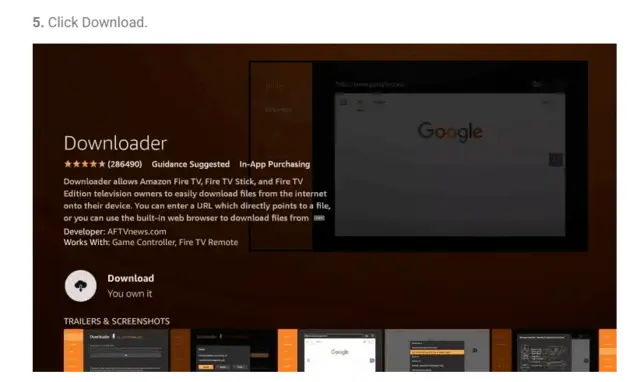
Choose Download or Get.
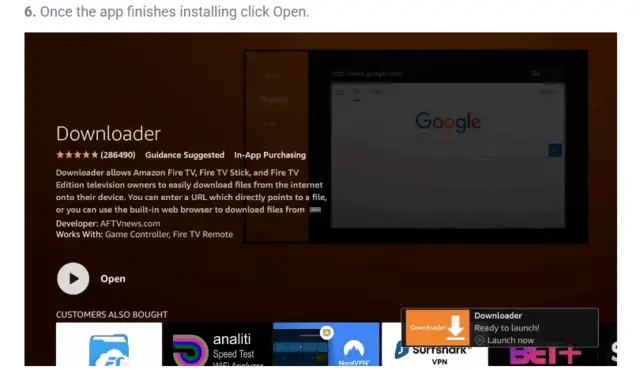
When it finishes, select Open.
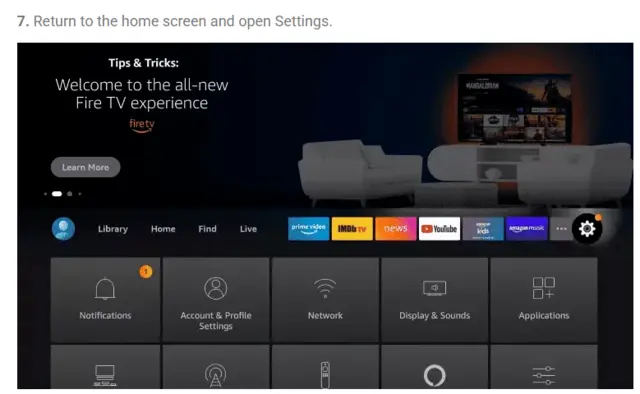
Return to Fire TV Settings.
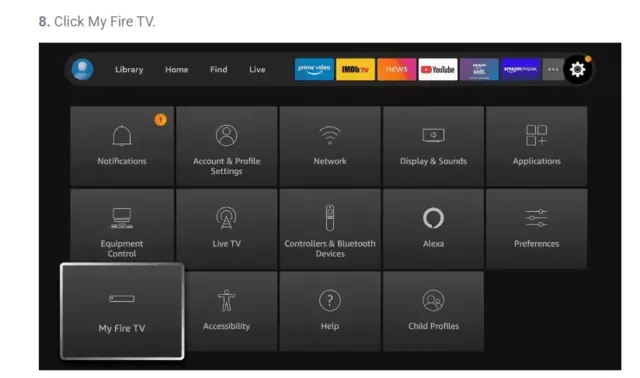
Open My Fire TV.
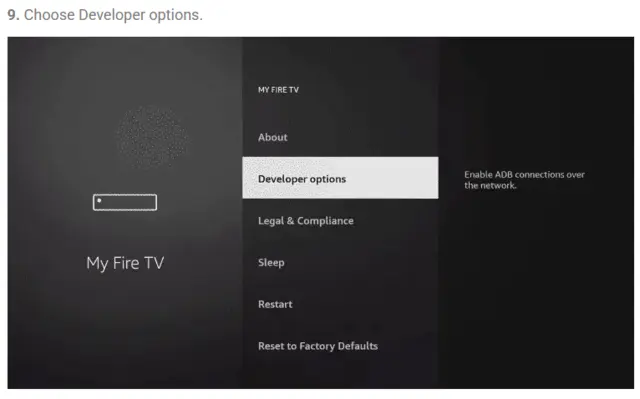
Select Developer options.
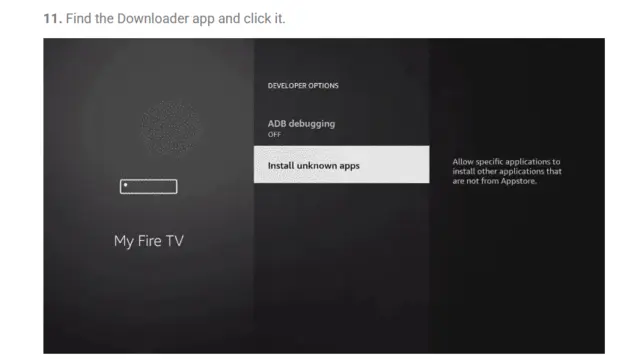
Choose Install unknown apps.
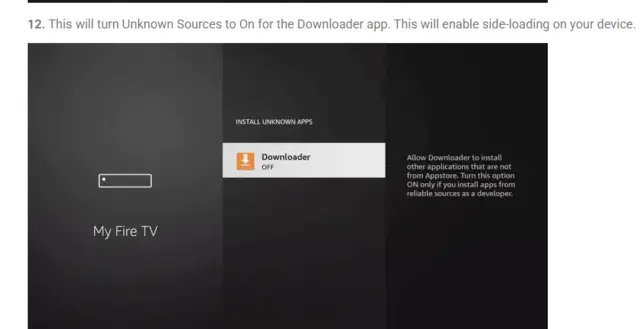
Turn Downloader on.
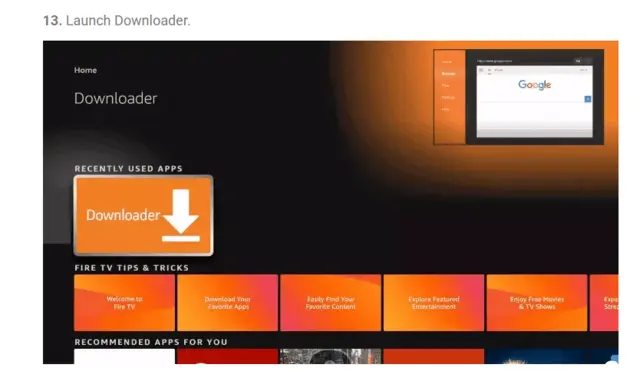
Launch Downloader.
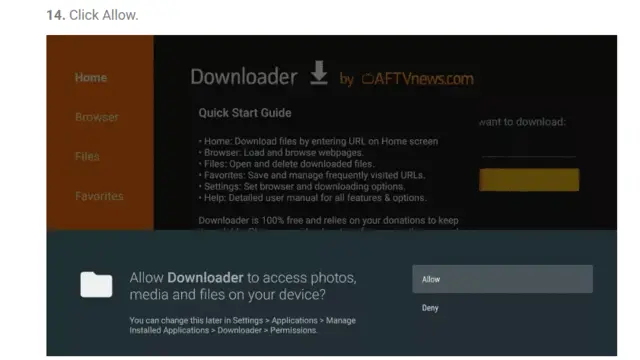
When asked, choose Allow so Downloader can access files.
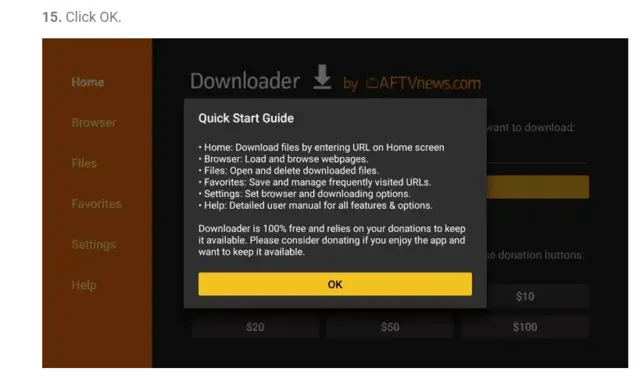
Downloader is ready to use.
272483
Type this code in Downloader, press Go, then choose Install and Open. In TiviMate, choose Add playlist and use the FireMega4K login details from your activation message.
Choose your player
We recommend iMPlayer or TiviMate. XCIPTV Player by OTTRUN is also a free option for compatible Android-based devices.
The free TiviMate experience is best for live channels. To access movies and TV shows (VOD) from your playlist in TiviMate, you’ll need TiviMate Premium.
Use iMPlayer to access your FireMega4K live channels, movies, and TV shows in one place — with no extra player upgrade needed.
Android devices only · Fire TV Stick · ONN 4K · Android TV
A TV-focused player with a familiar channel-guide layout. TiviMate is for Android-based devices only, including Fire TV Stick, ONN 4K, Android TV, and Google TV.
272483Android & Apple devices · TVs · phones · tablets
A flexible media player for your full FireMega4K library: live channels, movies, and TV shows in one guided setup. It supports Android devices and Apple devices.
ONN 4K · Android TV · Android phones & tablets · Fire TV devices with Play Store access
XCIPTV Player by OTTRUN is a free player option for compatible Android-based devices. Use the login details from your FireMega4K activation message to connect your live TV, movies, and TV shows.
Open the Google Play Store on your ONN 4K, compatible Fire TV or Fire Stick device with Play Store access, or another Android device. Search for XCIPTV Player by OTTRUN and select Install.
Open XCIPTV Player, select Add playlist or Xtream Codes, then choose the login option for a server URL, username, and password.
Add your FireMega4K server URL, username, and password from your activation message, then save and allow the library to sync.
Send us your device type and the player you are using. We’ll help you get connected—without asking you to share your password publicly.